Install
Quick start
App key
You must specify theappCode parameter when initializing the widget. This parameter is used to identify the source of orders. The key must be a UTF8 string of up to 50 chars. It will be a part of orders meta-data, see more in the CoW Protocol Docs.
Partner fee
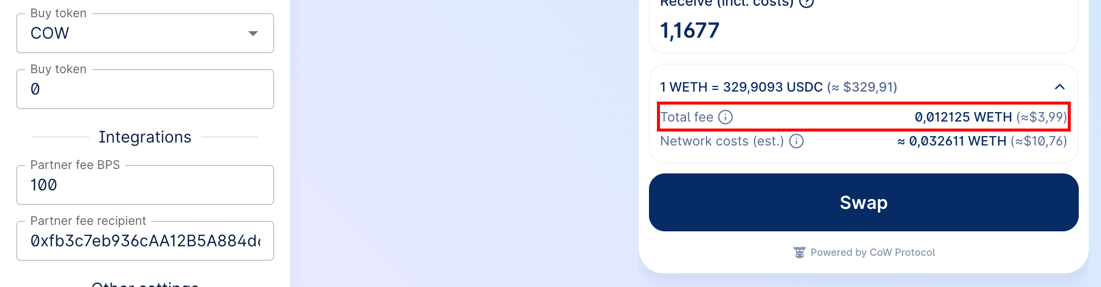
You may participate in the Partner Fee program to collect fee on Market order trades executed by your users through the Widget by adding the following parameter to your Widget:Flexible config
Bothbps and recipient can be set for different chains and different trade types (swap/limit/advanced).
Bellow you can see the partnerFee configuration variations:
Advanced configuration
ThepartnerFee parameter can be set in a more advanced way using events. For example, you can define different fees for different assets:
Fee BPS
The fee in basis points (BPS). One basis point is equivalent to 0.01% (1/100th of a percent).The fee cannot exceed 1% (100 bps).
Recipient
The recipient is the address to which the fee will be sent. Make sure that the fee recipient address exists on the respective network defined in the parameters. For example, if you use a Safe as a recipient and the Safe was created on Ethereum mainnet, then for Gnosis Chain you must create another Safe and set it as a fee recipient. As a fee recipient, you can specify either string or a key-value pair in the formatchainId: recipientAddress:
Slippage configuration
The widget supports declarative slippage settings. This allows you to fine‑tune the minimum, maximum and default slippage per network.Types
Parameter
Add theslippage field to CowSwapWidgetParams:
partnerFee:
Behaviour & validation
Example JSON (Configurator ready)
Wallet provider
You can pass the wallet provider from your application to seamlessly use the widget as part of your application. Also, you can not specify the provider, in this case the widget will work in standalone mode with the ability to connect any wallet supported in CoW Swap. A provider must comply with EIP-1193 and implement the interface:Configuration
CowSwapWidgetParams
All params are optional
Custom theme
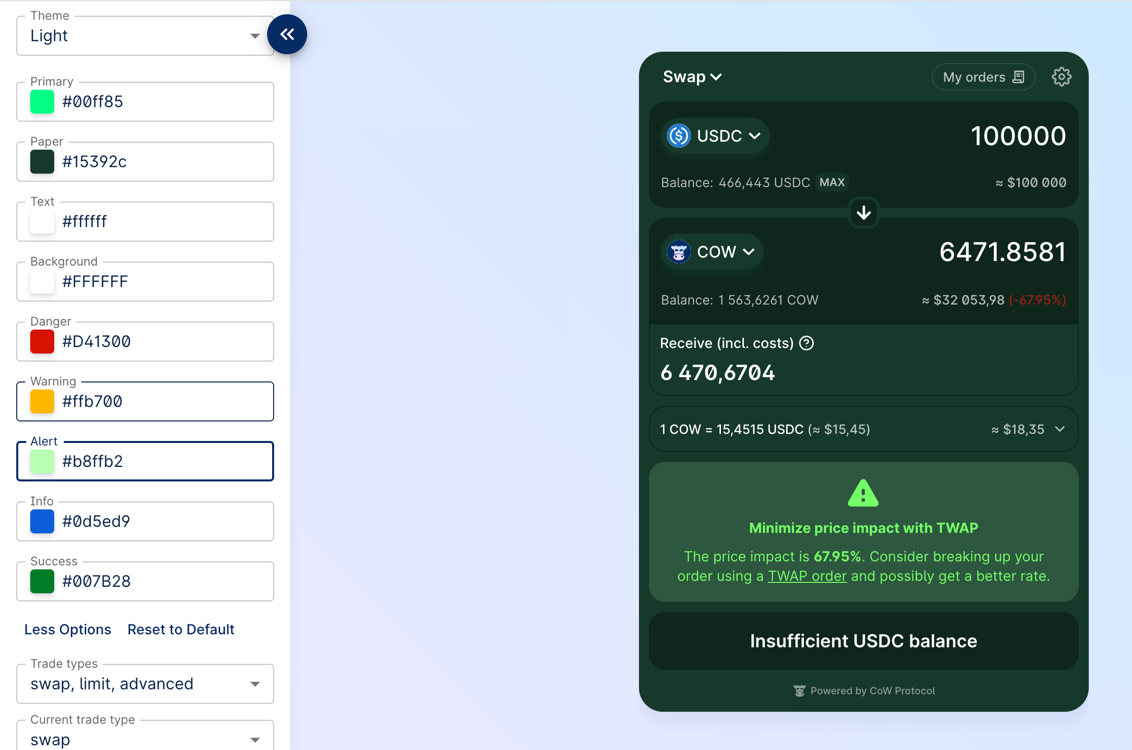
By setting custom colors you can very flexibly control the appearance of the widget. To do this, you need to pass an object of typeCowSwapWidgetPalette to the theme parameter.
You actually can specify only 2 or 3 basic colors, the rest of the palette is efficiently derived (also with the help of the color2k library to get ‘AA’ rated text/background color contrasts).
Example:
Custom tokens
CowSwap uses the token lists standard, which allows flexible and decentralized management of assets for trading. You can manage the list of tokens in CoW Swap UI: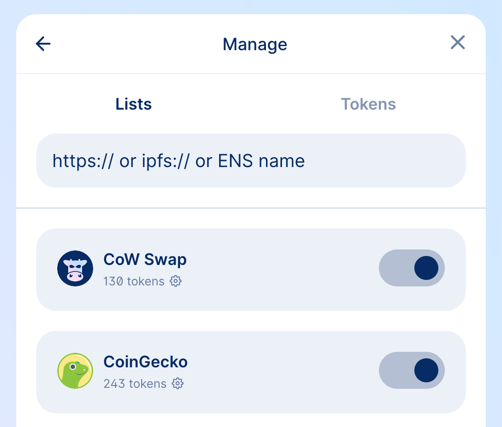
- using
tokenListsparameter - using
customTokensparameter
tokenLists
In this parameter you can specify the URL or ENS address of the token list.
How to create and deploy your own token list you can find in the guide.
customTokens
If you want to use tokens that are not included in the default token lists, you can add them programmatically by passing an array of ERC-20 tokens info.
Events handling
The widget provides a bus of events that occur in the widget. Using it, you can receive notifications, for example, when an order has been executed or when an approval transaction has been mined. Separately, it is worth noting theON_TOAST_MESSAGE event; it occurs every time any notification is displayed in CoW Swap. To avoid double display of notifications, enable the disableToastMessages option in the widget configurations.
A list of all possible events can be found in the source code on Github.
Events usage example
Widget updating
You can change all possible widget options on the fly:Widget URL
Most of the widget parameters are controlled via the URL, which means that you can create the URL yourself and embed the iframe. An example of URL:Customization
Sounds
Images
In the example below, we replace the image that is displayed when there are no orders in the limit orders table. You can replace any image in the widget in the same way.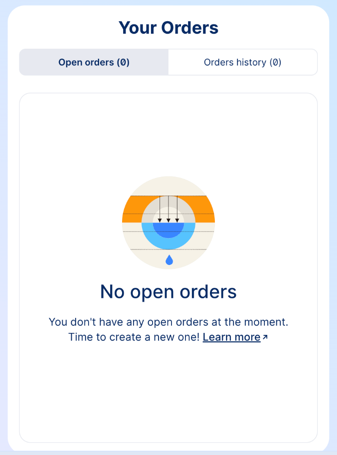
Banners
In some cases, you may want to hide some banners in the CoW Swap interface. To do this, you need to specify thebanners parameter in the widget configuration.